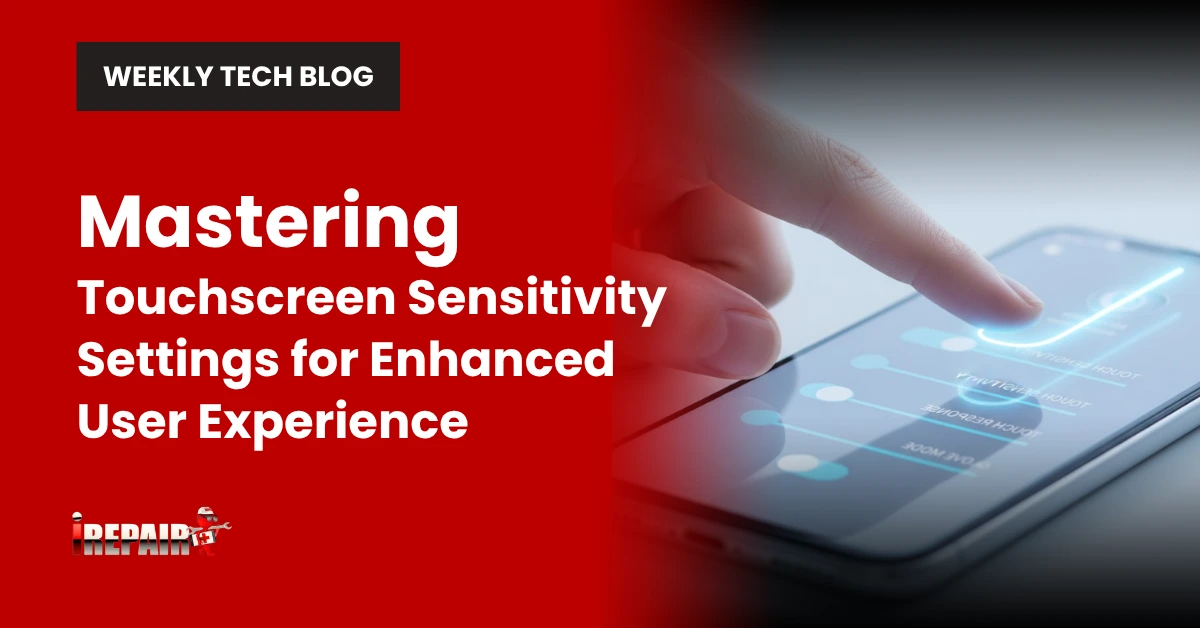
Mastering Touchscreen Sensitivity Settings for Enhanced User Experience
Optimize your touchscreen experience by adjusting sensitivity settings in your device’s Display or Accessibility menu. Android, iOS, and Windows all offer customization options for touch responsiveness. Higher sensitivity works best for gaming, while lower settings improve precision tasks. Clean your screen regularly and check for software updates to prevent common issues like phantom touches or dead zones. The perfect touch settings await in your device’s configuration options.
Understanding Touchscreen Technology and Sensitivity Variables
Nearly every modern device we interact with daily relies on touchscreen technology, from smartphones and tablets to ATMs and car navigation systems. When you tap, swipe, or pinch your screen, you’re engaging with complex sensors that detect electrical changes caused by your touch.
Touchscreen sensitivity refers to how responsive these sensors are to your interactions. Several variables affect this responsiveness, including the technology type (capacitive vs. resistive), screen material, and internal calibration settings. Your device’s ability to accurately register touch location and pressure directly impacts your user experience.
Understanding these variables helps you recognize when your touchscreen isn’t performing ideally. Most devices allow you to adjust sensitivity levels through calibration tools, giving you control over how your device responds to different touch pressures and gestures.
Common Sensitivity Issues and Their Root Causes
Although touchscreens are designed for intuitive interaction, they often develop sensitivity issues that can frustrate even the most patient users. You might experience unresponsive areas where taps go unregistered, or conversely, hypersensitive regions that register phantom touches.
These problems typically stem from several sources: calibration drift in your device settings, screen protectors that interfere with capacitive signals, or accumulated oils and dirt on the display surface. Environmental factors like humidity and temperature can also impact touchscreen sensitivity, particularly in extreme conditions.
Software glitches or outdated firmware frequently cause inconsistent touch response, while physical damage to the digitizer layer can create permanent dead zones. Understanding these root causes helps you determine whether a simple sensitivity adjustment or professional repair is needed.
Step-by-Step Guide to Adjusting Sensitivity on Different Devices
Now that you’ve identified potential sensitivity issues, let’s examine how to address them through device-specific adjustments. Different operating systems offer various ways to fine-tune touchscreen sensitivity to match your preferences.
On Android devices, navigate to Settings > Display > Touch sensitivity or Settings > Accessibility > Touch settings, depending on your device model. Toggle the sensitivity enhancement option to improve responsiveness.
For iOS users, go to Settings > Accessibility > Touch > Touch Accommodations to adjust holding duration and ignore repeat touches.
Windows tablet users can access touchscreen sensitivity settings through Control Panel > Hardware and Sound > Pen and Touch > Touch options.
Remember that ideal sensitivity settings vary based on your specific needs and environmental conditions.
Optimizing Touchscreen Settings for Specific Activities and Applications
Different activities call for tailored touchscreen settings to maximize your performance and enjoyment. When gaming, you’ll benefit from higher touch sensitivity levels to guarantee quick response times during fast-paced action. Reduce the sensitivity slightly for precision tasks like digital drawing or photo editing to avoid accidental inputs.
For reading or browsing, a medium sensitivity setting offers the best user experience, allowing you to scroll and tap links with minimal effort. If you’re working with spreadsheets or text documents, consider adjusting your screen’s palm rejection settings to prevent unintended touches while typing.
Don’t forget to customize haptic feedback strength for different apps, stronger vibrations for notifications and games, gentler ones for everyday navigation to preserve battery life.
Troubleshooting Persistent Sensitivity Problems and Advanced Solutions
Sometimes your touchscreen may continue to exhibit sensitivity issues despite adjusting the basic settings. When standard fixes fail, it’s time to try more advanced troubleshooting methods.
First, check for firmware updates specifically addressing touch responsiveness issues. Outdated firmware often causes persistent sensitivity problems that basic settings can’t fix. Next, try performing a factory reset on your touchscreen calibration; this can resolve deeply embedded configuration errors.
For devices with developer options, you can adjust touch sampling rates and pointer visualization to diagnose exactly where the touch recognition fails. If hardware issues are suspected, use diagnostic apps that map touch response across your entire screen.
As a last resort, contact your manufacturer’s support team, as some sensitivity issues stem from hardware defects requiring professional intervention.
Frequently Asked Questions
Can Touchscreen Sensitivity Affect Battery Life?
Yes, touchscreen sensitivity can affect your battery life. Higher sensitivity settings require more processing power, making your device work harder and consume more energy. If your touchscreen is constantly registering phantom touches due to high sensitivity, this creates unnecessary activity that drains battery faster. Conversely, optimizing sensitivity to just what you need can help extend battery life without sacrificing user experience.
Do Weather Conditions Impact Touchscreen Responsiveness?
Yes, weather conditions greatly impact touchscreen responsiveness. Cold temperatures make your screen less responsive as they reduce electrical conductivity in your fingertips. High humidity can cause false touches, while extreme heat might make screens overly sensitive. Rain or water droplets can register as touches. If you’re using your device outdoors, you might need to adjust sensitivity settings or use touchscreen-compatible gloves in cold weather.
Are Factory-Installed Screen Protectors Better for Maintaining Sensitivity?
Factory-installed screen protectors generally maintain better sensitivity than aftermarket options. They’re specifically designed for your device’s touchscreen, ensuring ideal conductivity and precision. You’ll notice they’re usually thinner and have better adhesive application, minimizing air gaps that can reduce touch responsiveness. While they typically offer good sensitivity, some premium aftermarket protectors with nano-coating technology can perform similarly. If sensitivity is your priority, stick with the factory-installed option or invest in high-quality alternatives.
How Often Should Touchscreen Calibration Be Performed?
You should calibrate your touchscreen when you notice performance issues like inaccurate touch response or missed taps. For most devices, there’s no fixed schedule; calibrate as needed rather than on a regular basis. However, it’s worth recalibrating after major software updates, screen protector changes, or if you’ve dropped your device. Many modern devices have automatic calibration, so manual adjustment is typically only necessary when problems arise.
Can Touchscreen Sensitivity Degrade Permanently Over Time?
Yes, your touchscreen’s sensitivity can permanently degrade over time. This happens due to physical wear, component aging, and accumulation of microscopic scratches on the screen surface. You’ll notice this as less responsive areas or erratic behavior that persists despite calibration. While software adjustments can compensate somewhat, the physical degradation is irreversible. Regular maintenance, like clean hands and screen protectors, can slow this process, but can’t prevent it entirely.