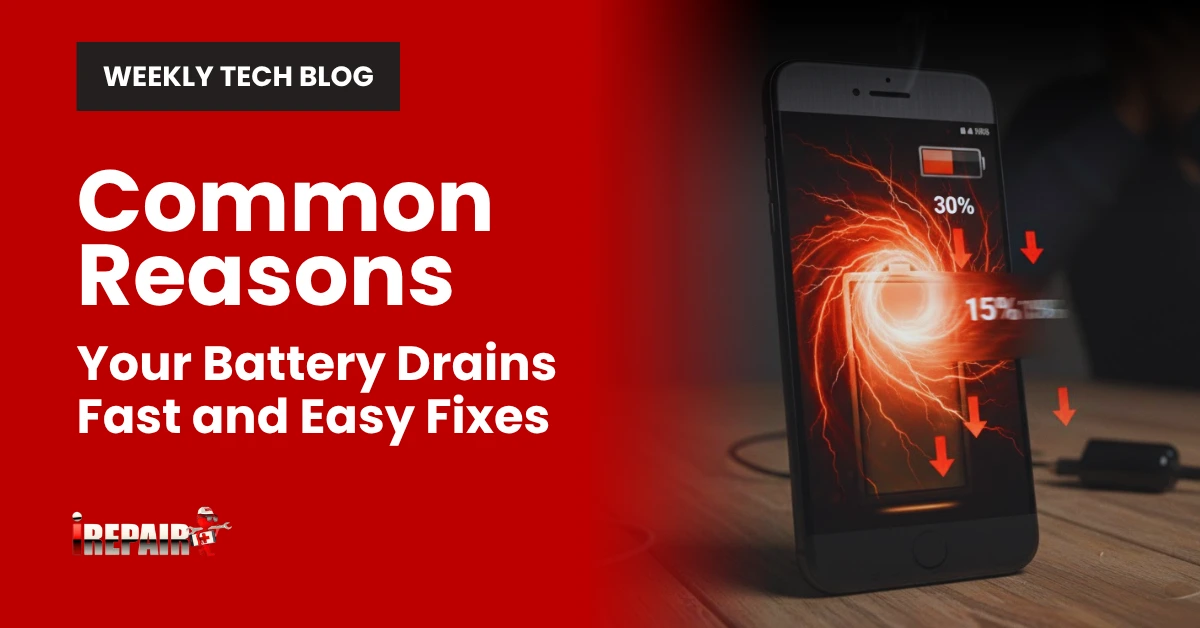
Common Reasons Your Battery Drains Fast and Easy Fixes
Your battery drains quickly due to power-hungry background apps, high screen brightness, always-on location services, excessive push notifications, and constant connectivity. Fix these issues by force-stopping unnecessary apps, lowering brightness, restricting location permissions to “while using,” limiting notifications to essential apps only, and maintaining battery levels between 20-80%. Regular monitoring of battery usage helps identify specific culprits draining your power. Discover more simple tweaks to extend your device’s daily life dramatically.
Background Apps Consuming Power Silently
You’re probably unaware of the digital vampires lurking in your device right now. These background apps continuously drain your battery while you’re not even using them. Some rejuvenate content, track location, or sync data without any visible indication.
To combat this, start with background process optimization by checking your battery usage statistics. Most devices show which apps consume the most power under battery settings. Force-stop unnecessary apps and restrict their background activities.
App energy usage monitoring should become a regular habit. Consider using your device’s built-in battery monitoring tools to identify the worst offenders. You’ll likely discover social media, navigation, or shopping apps running when they shouldn’t be. For critical apps that must stay active, adjust their individual settings to minimize background rejuvenation.
Screen Settings That Drain Battery Life
Your device’s screen is typically the biggest power consumer, often accounting for over 50% of total battery usage. When you keep brightness at maximum levels or use features like always-on display, you’re accelerating battery drain considerably.
To improve display efficiency, adjust your brightness to the lowest comfortable level or enable adaptive brightness, which automatically optimizes based on ambient light. Shortening your screen timeout to 30 seconds prevents unnecessary power use when you set your device down.
Modern operating system power optimization includes dark mode, which can reduce battery consumption on OLED and AMOLED screens. Similarly, disabling animations and lowering resolution settings can extend battery life during critical moments when you’re far from a charger.
Location Services and Their Impact on Battery Performance
While many users don’t realize it, location services constantly running in the background can devastate battery life. Your phone’s GPS chip requires significant power to maintain an accurate position, making it one of the major battery drain factors.
When you grant apps permanent location access, they may track your position even when closed. This continuous background activity keeps your device from entering deep sleep modes.
To maximize battery life, switch your location accuracy to “Battery Saving” mode, which uses Wi-Fi and mobile networks instead of power-hungry GPS. Review which apps have location permissions and restrict them to “while using” instead of “always.” For most applications, GPS services are only needed occasionally, so toggle them off when unnecessary.
Push Notifications and Constant Connectivity Costs
Although seemingly harmless, the constant stream of push notifications keeping your device connected represents a substantial battery drain factor. Every alert forces your phone to wake up, activate the screen, and process information, all consuming precious power.
Your device’s constant wireless connections are equally problematic. When apps continuously sync data in the background, they’re constantly using battery resources even when you’re not actively using them.
To extend battery life, consider:
- Limiting push notifications to essential apps only
- Disabling auto-sync for non-critical applications
- Setting email accounts to “fetch” manually instead of “push”
- Scheduling Do Not Disturb periods during sleep hours
These small adjustments can greatly reduce the battery drain from your device’s always-on connectivity.
Battery Health and Maintenance Practices
Battery health naturally deteriorates over time, regardless of how carefully you manage your device. Most modern batteries start losing capacity after 300-500 charging cycles, eventually retaining only 80% of their original power.
To maximize battery health and charging cycles, avoid letting your device completely drain or remain at 100% for extended periods. The ideal range is between 20-80%. You’ll also want to prevent overheating during charging by removing protective cases and avoiding processor-intensive activities.
Long-term battery maintenance habits should include occasional full discharge cycles (once every 1-2 months), using certified charging equipment, and checking your battery health statistics in your device settings. If your battery health drops below 80%, consider a replacement to restore performance and longevity.
Frequently Asked Questions
Does Charging Overnight Really Damage My Battery?
Charging overnight can affect your battery’s health. Modern devices have safeguards that stop charging when full, but keeping your battery at 100% for extended periods creates heat and stress. This gradually reduces capacity over time. For ideal battery longevity, try to keep your charge between 20-80% when possible, and use certified chargers. If overnight charging fits your routine, consider using scheduled charging features if available on your device.
Can Battery Calibration Improve Battery Life?
Battery calibration can help improve battery life, but it’s not a miracle fix. It fundamentally resets your device’s understanding of battery capacity. You’ll find it most effective when your battery percentage jumps erratically (showing 50% then suddenly 10%). Modern devices generally self-calibrate, so manual calibration offers minimal benefits. If you try it, simply let your device discharge completely, then charge it uninterrupted to 100% before using it again.
Why Does My Phone Drain Faster in Certain Locations?
Your phone drains faster in certain locations, mainly due to signal strength issues. When you’re in areas with poor cellular reception, your phone works harder to maintain a connection, consuming more power. Additionally, location-specific factors like extreme temperatures, Wi-Fi searching, or location services being triggered more frequently all contribute to faster battery drain. Try using airplane mode in low-signal areas or adjusting your location services settings to preserve battery life.
Do Dark Mode and Wallpapers Actually Save Battery?
Yes, dark mode does save battery on OLED/AMOLED screens. When your phone displays black pixels, those pixels actually turn off completely, using no power. This can save 5-15% battery life during normal use. Dark wallpapers work the same way. However, on LCD screens, you won’t see these benefits since the backlight stays on regardless of what colors you’re displaying. So your device type matters for this power-saving trick.
Is It Better to Keep My Battery at 100% or Partial Charge?
It’s actually better to keep your battery between 20-80% rather than at 100%. Maintaining a partial charge extends your battery’s overall lifespan. Lithium-ion batteries experience more stress when fully charged or completely depleted. You’ll want to avoid overnight charging and unplug once you reach 80-90%. For ideal battery health, try to charge more frequently in smaller amounts rather than letting it drain completely, then charging to full.