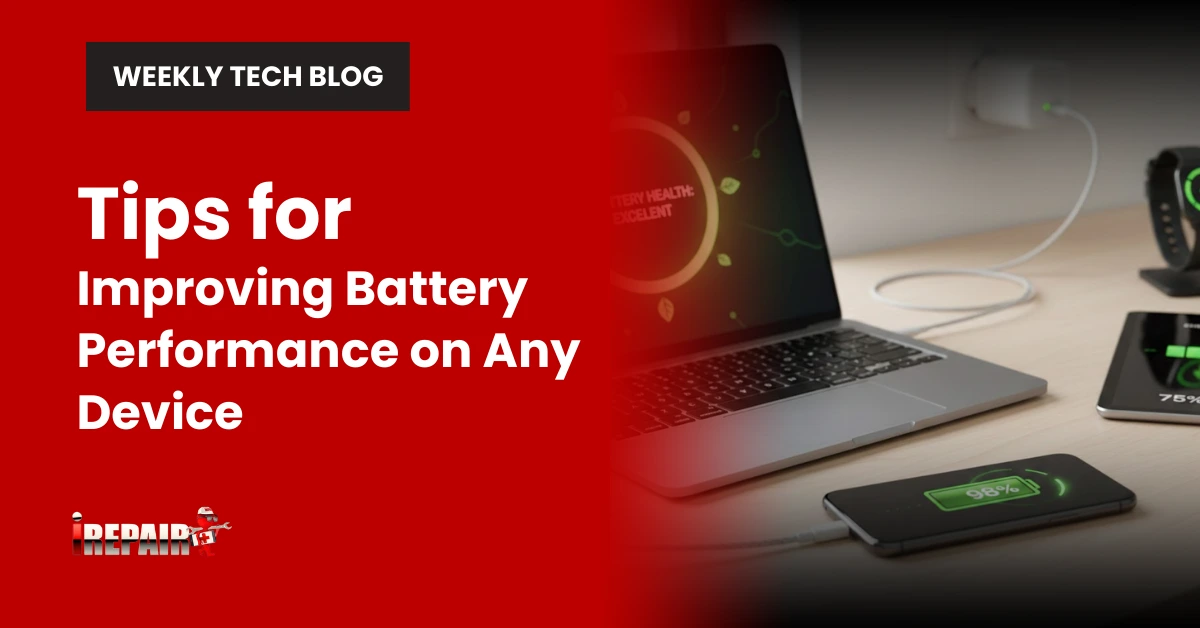
Tips for Improving Battery Performance on Any Device
To improve your device’s battery life, keep charging between 20-80%, reduce screen brightness to 50% or less, and enable dark mode on OLED displays. Close background apps, disable unnecessary connectivity like Wi-Fi, Bluetooth, and GPS when not in use. Activate battery saver mode below 30% charge and shorten screen timeout periods. These simple adjustments can dramatically extend your battery’s daily performance and long-term health. Let’s explore more strategies to maximize your power efficiency.
Understand Your Battery Type and Optimal Charging Habits
While most modern devices use lithium-ion batteries, understanding how they work can help you maximize their performance. These batteries prefer partial charges rather than full cycles, making the 20%-80% range ideal for daily use. Avoid letting your device completely discharge or staying plugged in at 100% for extended periods.
For best battery health maintenance, adopt consistent charging habits for longevity. Use certified chargers that match your device specifications, and consider slow charging overnight instead of fast charging when time permits. Remember that heat is a battery’s enemy. Remove thick cases while charging and keep devices away from direct sunlight or hot environments. These simple adjustments can greatly extend your battery’s useful life.
Manage Screen Brightness and Display Settings
Your display is one of the most power-hungry components in any device. Reducing brightness is the simplest yet most effective device power management technique you can implement. Try lowering your screen to 50% or less when indoors, and enable auto-brightness to adapt to changing environments.
OLED screens benefit enormously from dark mode, as black pixels consume virtually no power. For all devices, shortening screen timeout periods prevents unnecessary battery drain when you’re not actively using your device.
Many manufacturers include specialized energy-saving settings that optimize multiple display parameters simultaneously. Look for options like “Reading mode” or “Eye comfort” which not only reduce power consumption but also decrease eye strain. These small adjustments collectively make a substantial difference in your device’s battery longevity.
Control Background Apps and Processes
Silent power vampires lurk in the background of your device, steadily draining battery without your knowledge. Implementing effective background app control can dramatically extend your device’s runtime between charges.
On Android, visit Settings > Battery to identify power-hungry apps and restrict their background activities. iPhone users should check Settings > Battery and disable background refresh for non-essential apps. Windows and macOS offer similar power drain diagnostics in their battery settings.
Consider these quick fixes:
- Disable auto-sync for cloud services when not needed
- Manually close unused apps instead of leaving them minimized
- Use built-in battery optimization features
- Uninstall rarely used apps that might run background processes
- Schedule automatic maintenance tasks for when your device is charging
Optimize Connectivity Features (Wi-Fi, Bluetooth, GPS)
Although they’re essential for modern functionality, wireless connectivity features rank among the most significant battery drainers on your device. When implementing battery optimization techniques, selectively controlling these connections can dramatically reduce battery drain throughout your day.
Turn off Wi-Fi when you’re not actively using it, especially in areas with poor signals where your device constantly searches for connections. Similarly, disable Bluetooth unless you’re using wireless accessories. GPS is particularly power-hungry restrict its use to navigation apps only, and toggle off “location services” for non-essential applications. Most devices now offer quick-access toggles that make managing these features effortless.
Remember that airplane mode isn’t just for flights; it’s a quick way to disable all wireless connections when you need to maximize battery life.
Adjust Power Settings and Use Battery Saver Modes
Beyond managing connectivity features, one of the most effective ways to extend battery life is through your device’s power settings and built-in battery saver modes. Most modern smartphones, tablets, and laptops offer extensive power management options designed for efficient device usage.
On smartphones, enable battery saver mode when you’re below 30% or whenever you need extended runtime. This limits background processes and animations while maintaining essential functions. For laptops, switch from “high performance” to “balanced” or “power saver” when you’re not running demanding applications.
Device battery optimization is also available through customizable settings that reduce screen timeout duration, lower refresh rates on supported displays, and schedule battery saver to activate automatically. These small adjustments collectively make a significant difference in how long your device lasts between charges.
Frequently Asked Questions
Does Using a Phone While Charging Damage the Battery?
Using your phone while charging doesn’t markedly damage the battery itself, but it can create excess heat. This heat is what potentially shortens battery lifespan over time. Your device will also charge more slowly since you’re simultaneously draining and charging it. For ideal battery health, it’s best to let your device charge undisturbed, especially if you’re playing games or using processor-intensive apps that generate additional heat.
How Often Should I Completely Drain My Battery?
You shouldn’t completely drain your battery regularly. Modern lithium-ion batteries actually perform better when kept between 20-80% charged. Complete discharges (0-100%) cause stress and shorten battery lifespan. Instead of full drains, maintain partial charging cycles. Only occasionally (every 2-3 months), let your battery drop to 5-10% before recharging to help calibrate the battery meter. This approach will vastly extend your battery’s overall life expectancy.
Can Extreme Temperatures Permanently Reduce Battery Capacity?
Yes, extreme temperatures can permanently reduce your battery capacity. Heat above 95°F (35°C) accelerates chemical degradation inside lithium-ion batteries, while cold temperatures below 32°F (0°C) temporarily reduce performance. Hot environments are especially damaging, causing irreversible capacity loss over time. Even leaving your device in a hot car or direct sunlight can cause permanent damage. Always keep your devices at moderate temperatures to preserve battery health.
Do Third-Party Chargers Affect Battery Health?
Third-party chargers can affect your battery health, especially low-quality ones that don’t regulate voltage properly. They may cause overheating or deliver inconsistent power, accelerating battery degradation. You’ll want to use manufacturer-certified or reputable brand chargers that meet proper specifications. If you do use third-party options, look for those with safety certifications like UL or CE. The slight savings from cheap chargers aren’t worth the potential damage to your device’s battery longevity.
Should I Remove My Laptop Battery When Using AC Power?
Generally, you don’t need to remove your laptop battery when using AC power. Modern laptops have power management systems that prevent overcharging. Keeping the battery installed actually provides backup during power fluctuations. However, if you’re using your laptop plugged in for months at a time, removing the battery can prevent heat exposure and cycling that contributes to wear. For everyday use, just leave it in place.